Publish and Copy SermonAudio ID
Overview
Complete the post-stream flow in SermonAudio to finalize the webcast, publish it, and capture its ID for website embedding.
Prerequisites
- Live stream completed and available in SermonAudio
Steps
1) Open the recent webcast entry
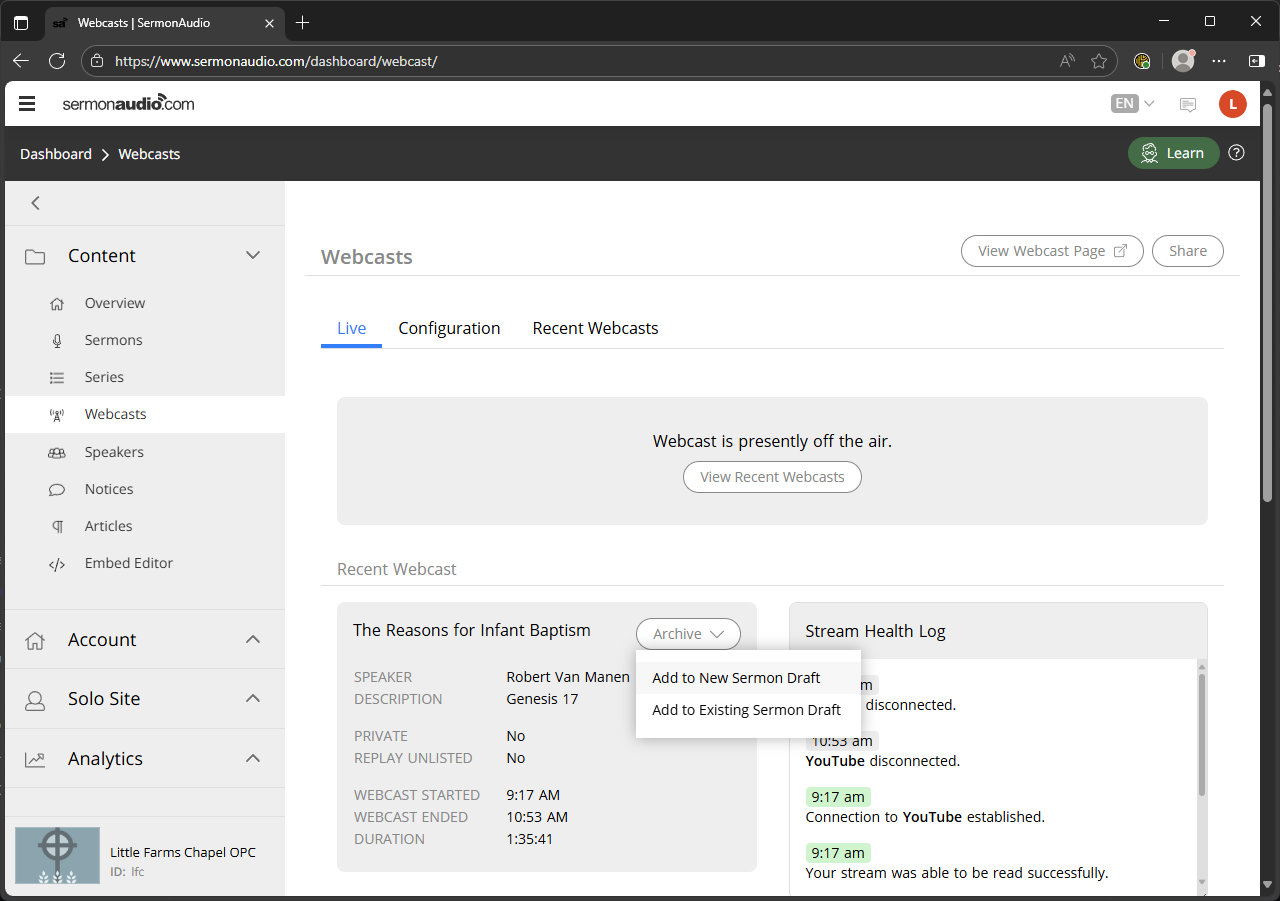
- Once the Live Stream is stopped via the “HELO” buttons on the stream deck, Sermon Audio will automatically end the Webcast and move the stream to “Recent Webcasts”
- Locate the post-stream webcast, click the “Archive” button and choose “Add to New Sermon Draft”
2) Update details and metadata
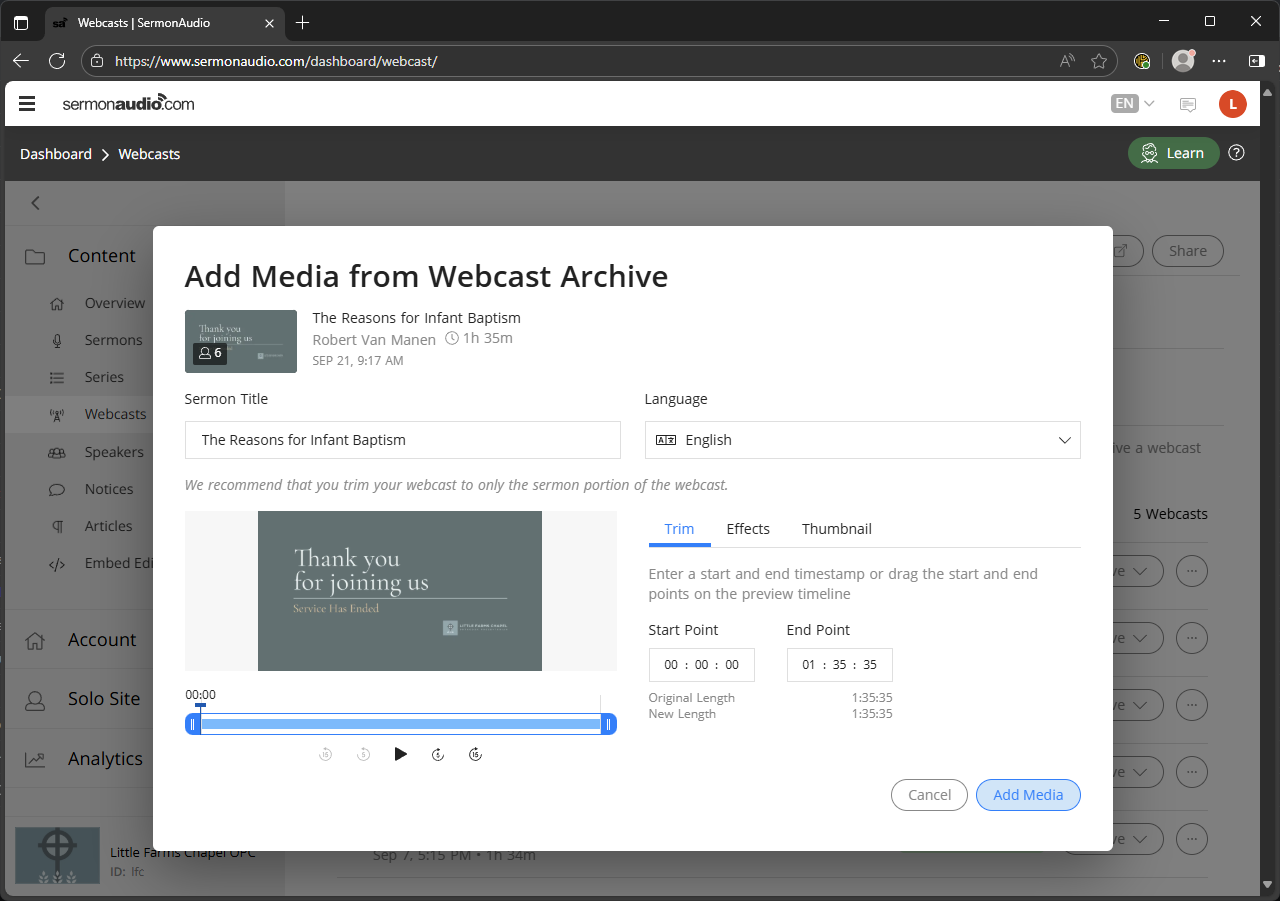
- You’ll be asked to confirm the title and then click “Add Media”.
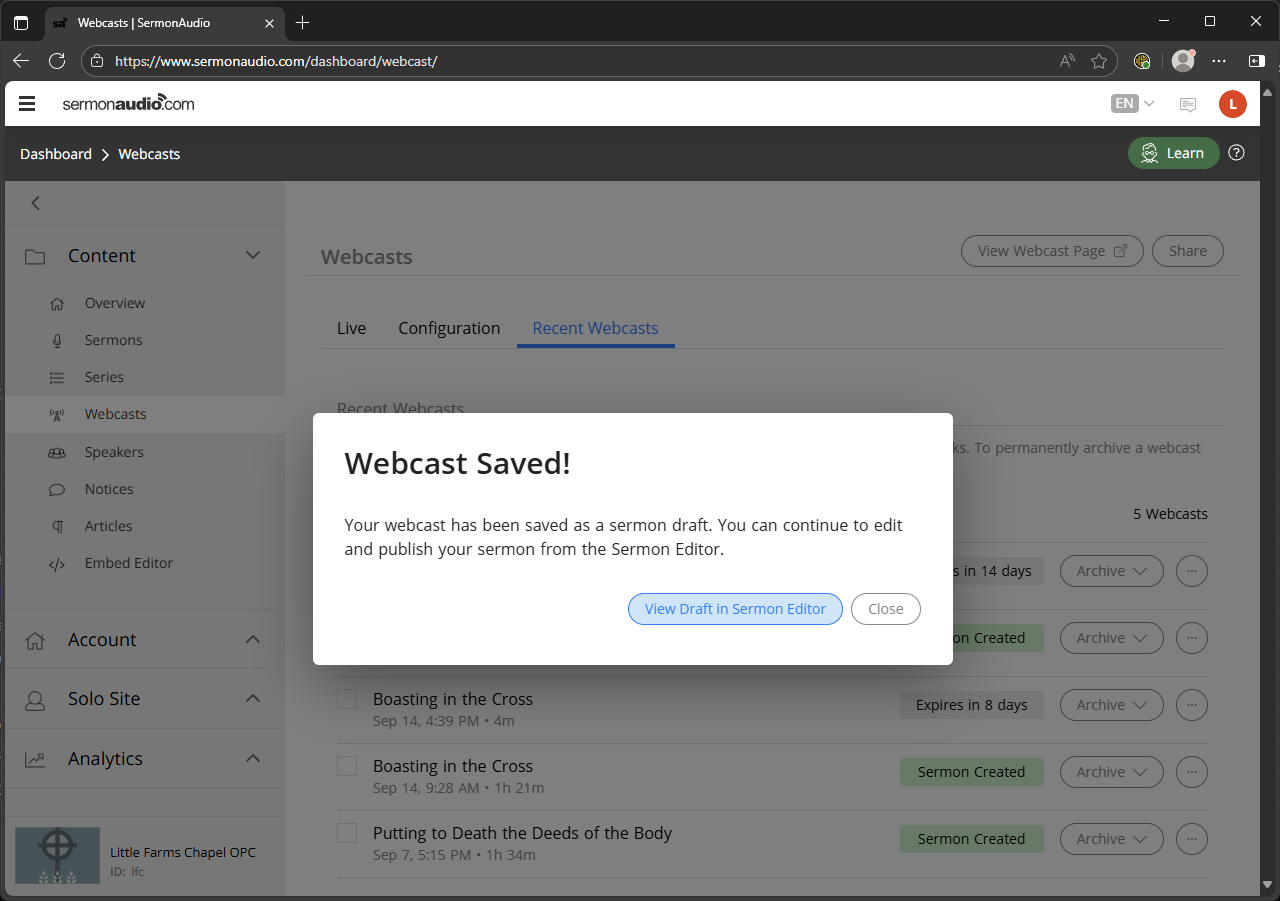
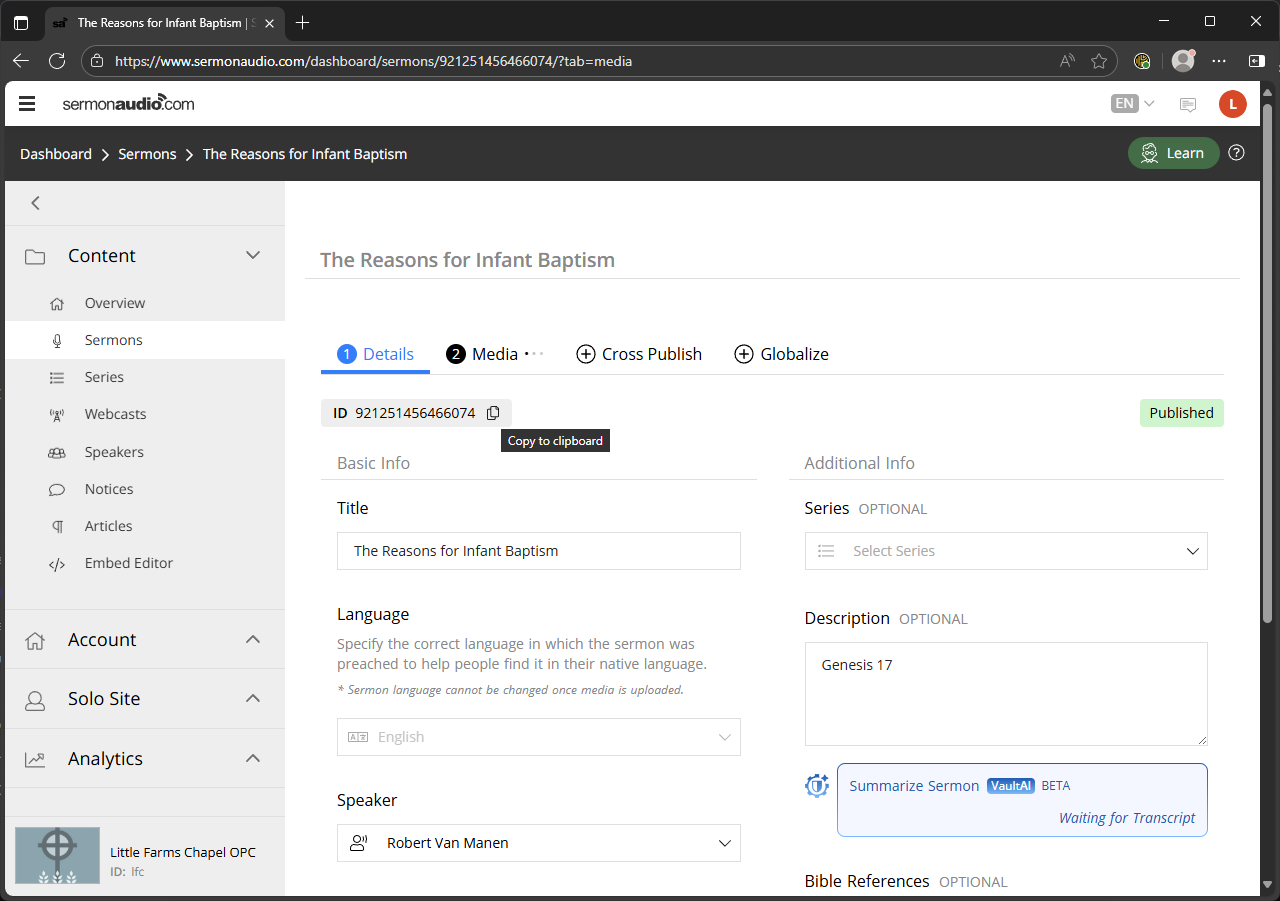
- You will be taken to the new sermon draft page, on the media tab. Navigate to the “Details” tab.
- Review Title and Speaker, these should have been set pre-stream, verify they are correct
- Update the “Series” and “Bible References”.
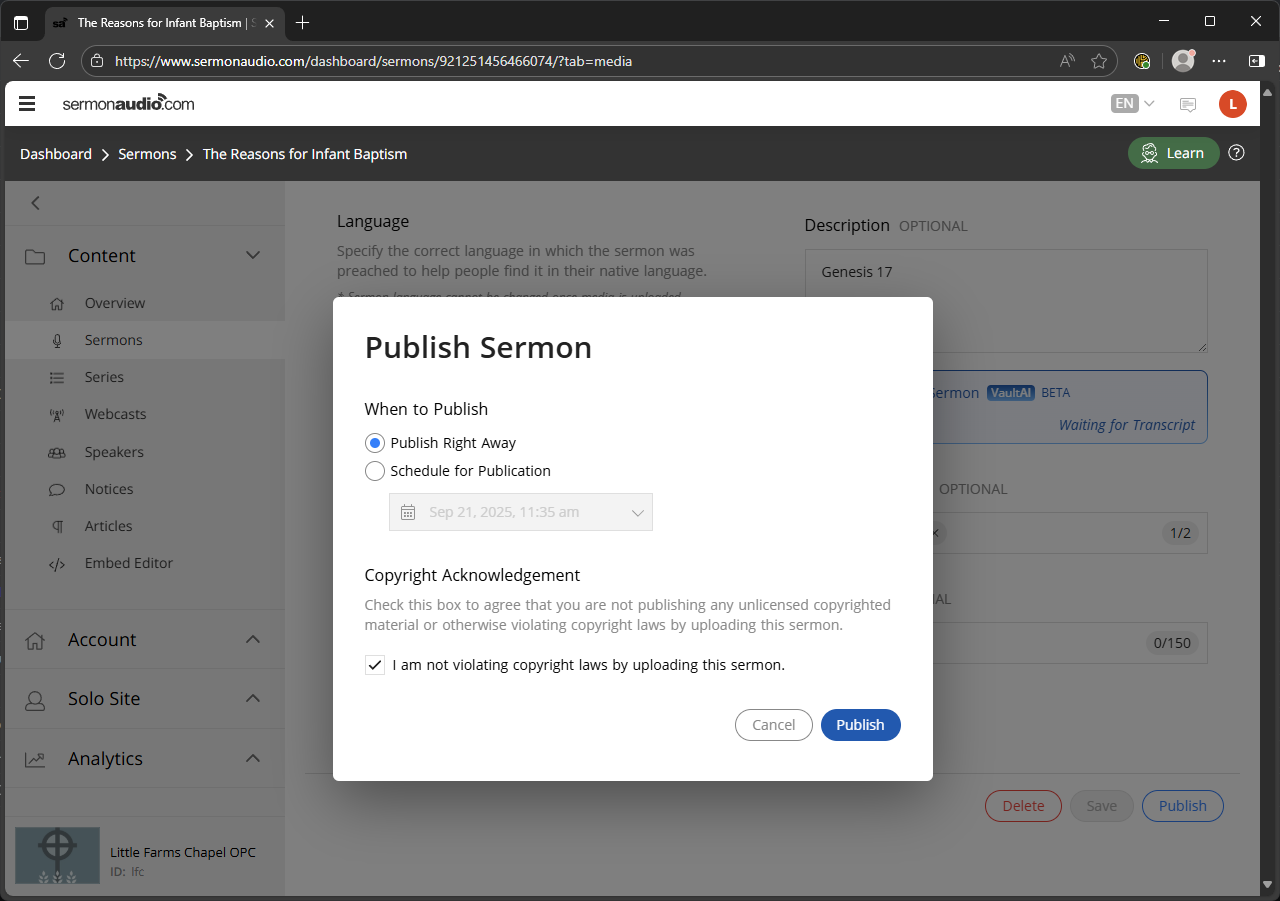
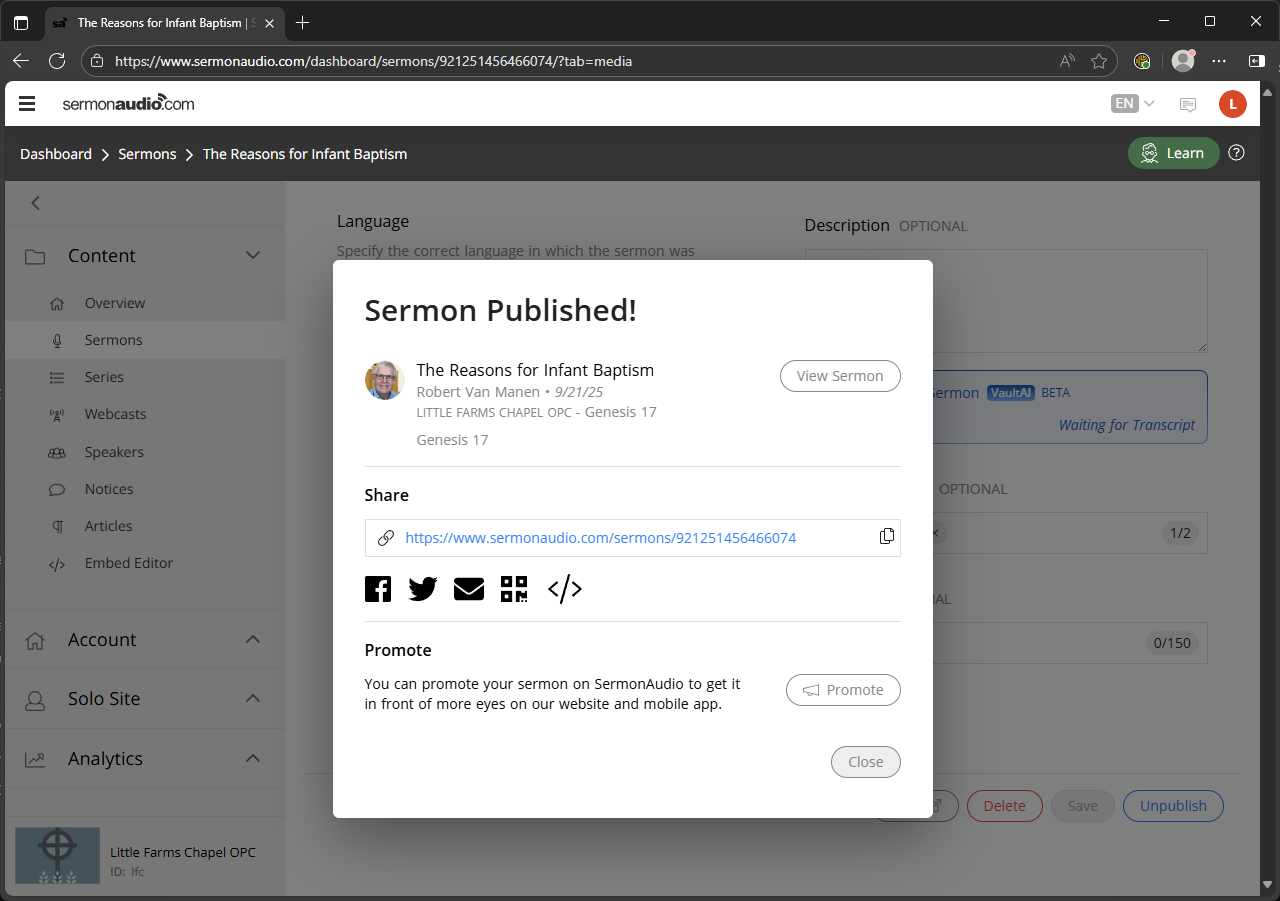
- Choose Publish.
3) Complete publishing workflow and copy the SermonAudio ID
- Follow the publish/confirmation prompts until the item is live.
- Copy the generated ID for website embedding.
4) Confirm public availability
- Ensure the published item appears on the channel/feed
Next Steps
Proceed to Embed Sermon on lfcopc.org.
Previous: Verify Live on HELO and Platforms · Next: Embed Sermon on lfcopc.org
Previous: Verify Live on HELO and Platforms · Next: Embed Sermon on lfcopc.org