layout: default title: “Verify Live on HELO and Platforms” nav_order: 6 description: “Confirm live state via AJA HELO web UI, SermonAudio destination, and YouTube recast.” tags: [how-to, live-stream, helo, sermonaudio, youtube] created: 2025-10-13 updated: 2025-10-13 reqs: [“DOC-2”] nav_order: 6
Verify Live on HELO and Platforms
Overview
Confirm that the stream is active on the encoder (HELO) and visible on SermonAudio and its YouTube recast. This validates end-to-end signal before service.
Prerequisites
- HELO device and network access
- SermonAudio and YouTube configured as destinations
Steps
1) Start the stream via the AJA HELO
- Use the “HELO RECORD” and “HELO STREAM” buttons on the Stream Deck to start the recording and live stream.
- Use the HELO web interface (http://192.168.0.52/) to verify stream is connected and running.
- Verify the “Alarms” is green and says “None”
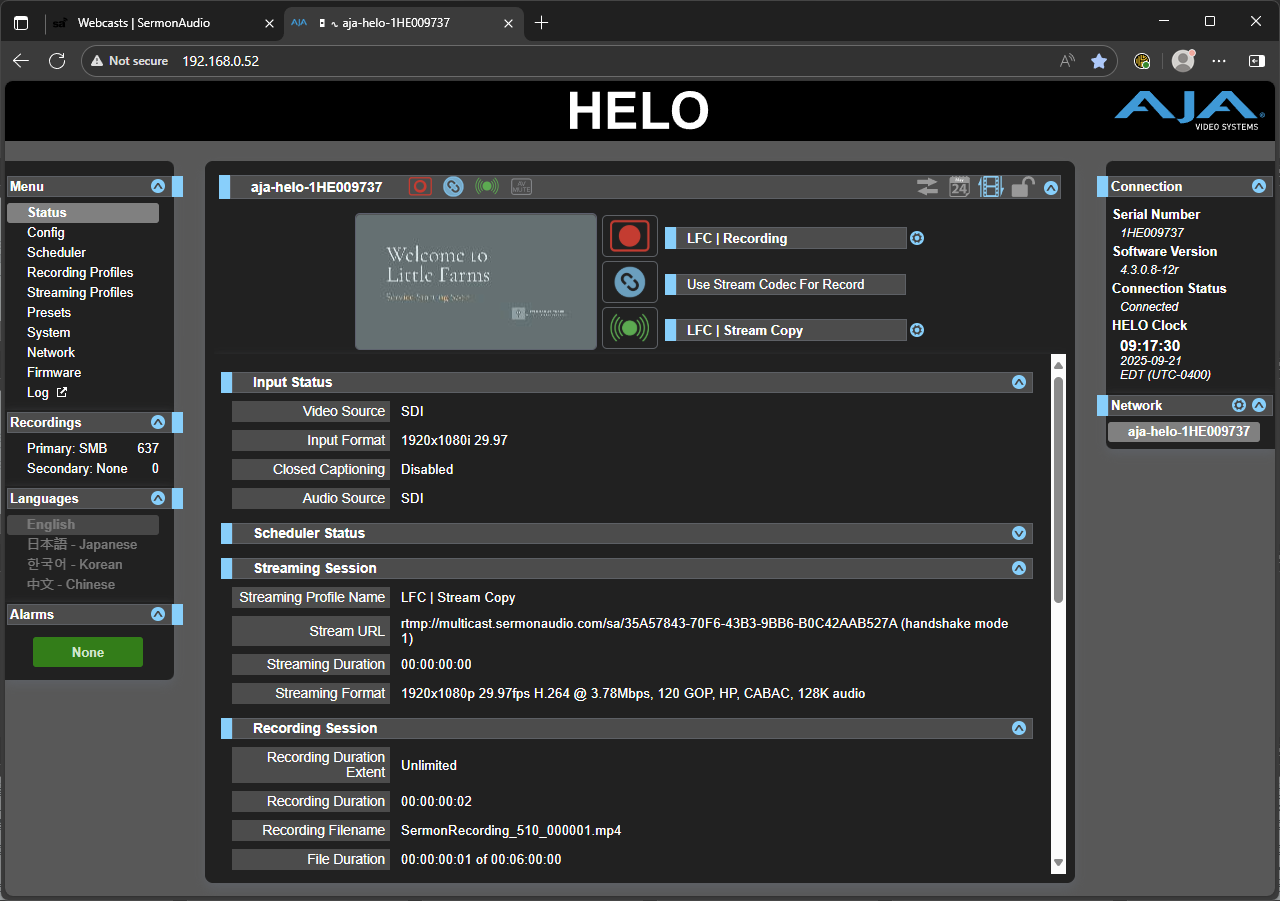
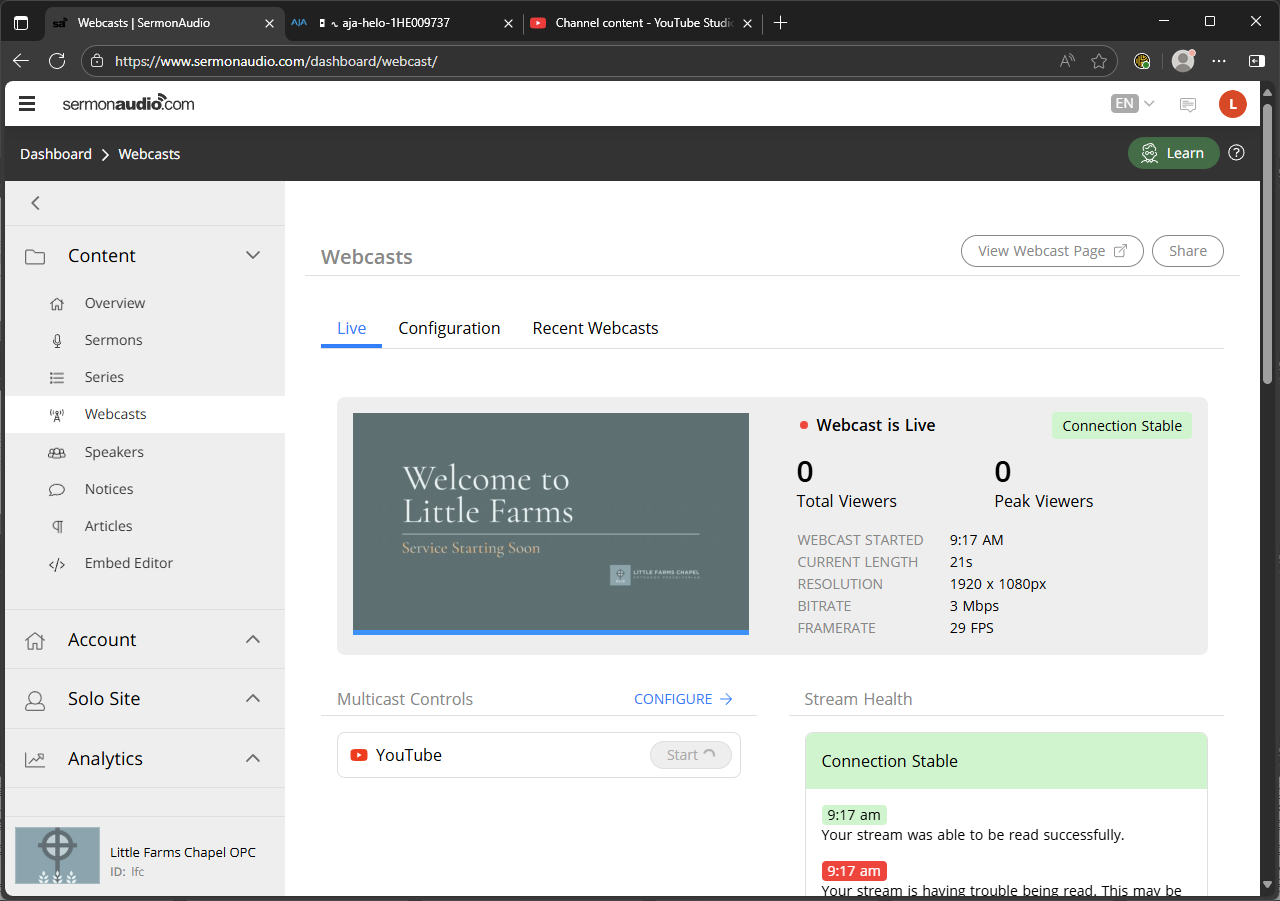
2) Verify SermonAudio destination shows ingest/preview
- In the “Webcasts” tab of Sermon Audio, ensure the stream is connected and that the YouTube Simulcast automatically started as it should.
- Confirm a healthy preview/ingest indicator and that metadata matches the webcast details.
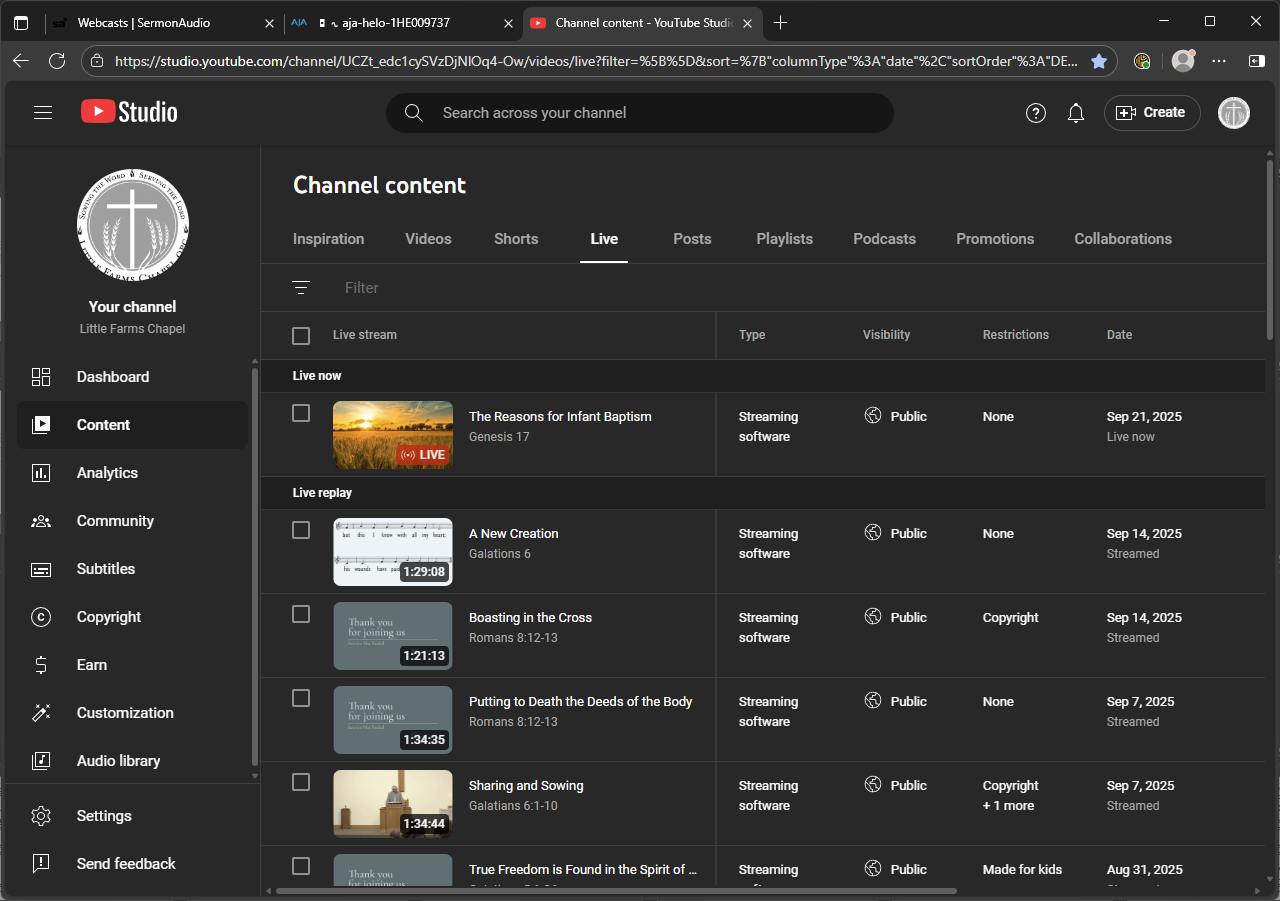
3) Confirm YouTube recast is receiving and healthy
- Login to YouTube (https://studio.youtube.com/) and navigate to the “Live” Tab
- Once the stream is started it should automatically appear here with the title entered into Sermon Audio.
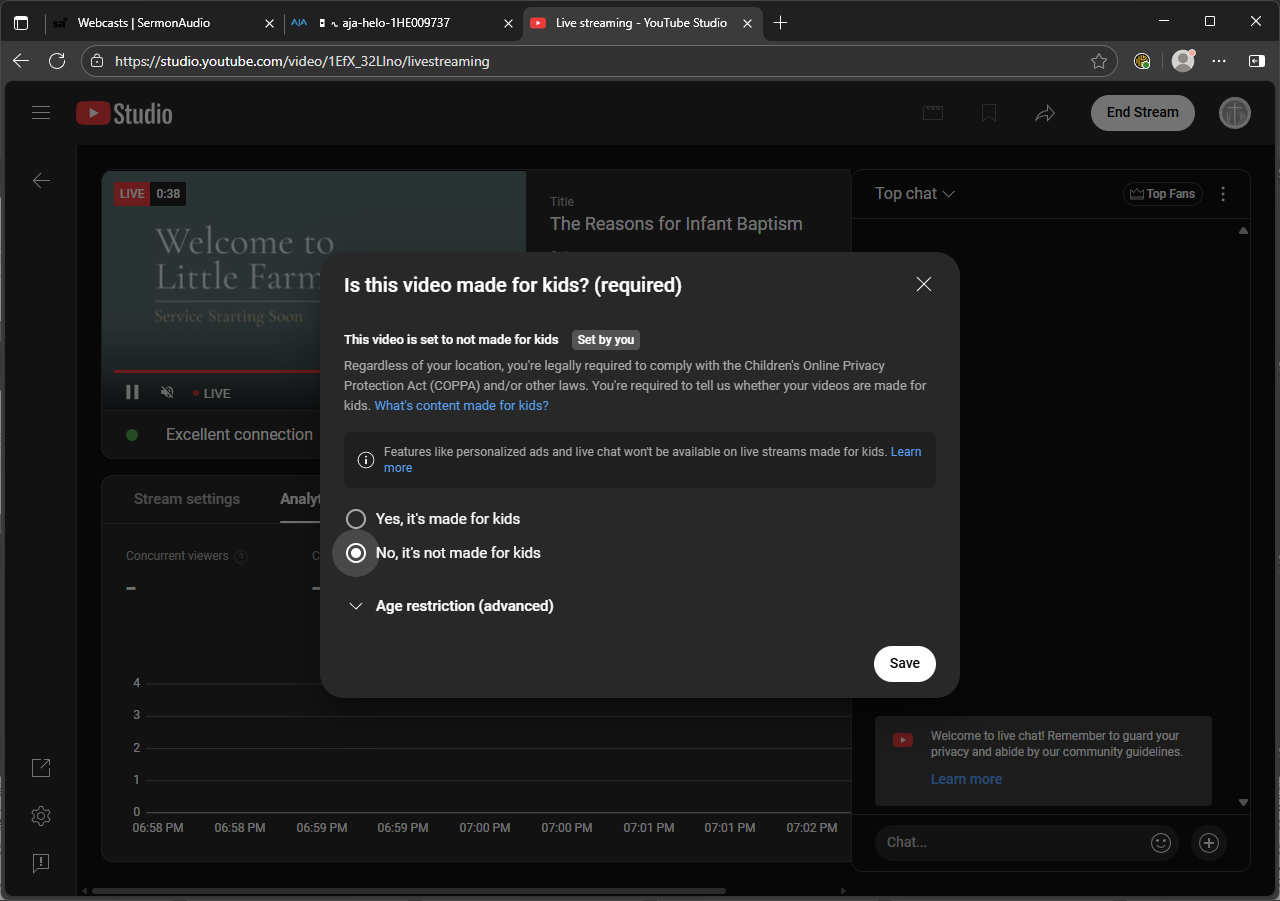
4) Confirm YouTube Settings
- Open the Live stream, YouTube will promt if this is “For Kids”, you can choose No.
- You can then keep this window open to monitor the YouTube stream, but this is not neccesary
Next Steps
After service, proceed to Publish and Copy SermonAudio ID.
Previous: Update SermonAudio Webcast Details · Next: Publish and Copy SermonAudio ID