layout: default title: “Restore ATEM Camera Grades” nav_order: 3 description: “Open ATEM Software Control and restore camera color/grade and switcher settings.” tags: [how-to, live-stream, atem] created: 2025-10-13 updated: 2025-10-13 reqs: [“DOC-2”] nav_order: 3
Restore ATEM Camera Grades
Overview
Use Blackmagic Design ATEM Software Control to restore camera color settings before service. This ensures cameras, color, and keys are consistent across services.
Prerequisites
- ATEM switcher (power switch: SWITCH) powered
- ATEM Software Control installed on the workstation
Steps
1) Launch ATEM Software Control
- Open from Start Menu > Blackmagic Design > ATEM Software Control.
- Confirm the app opens to the default switcher layout.

2) Open the restore panel to import saved settings
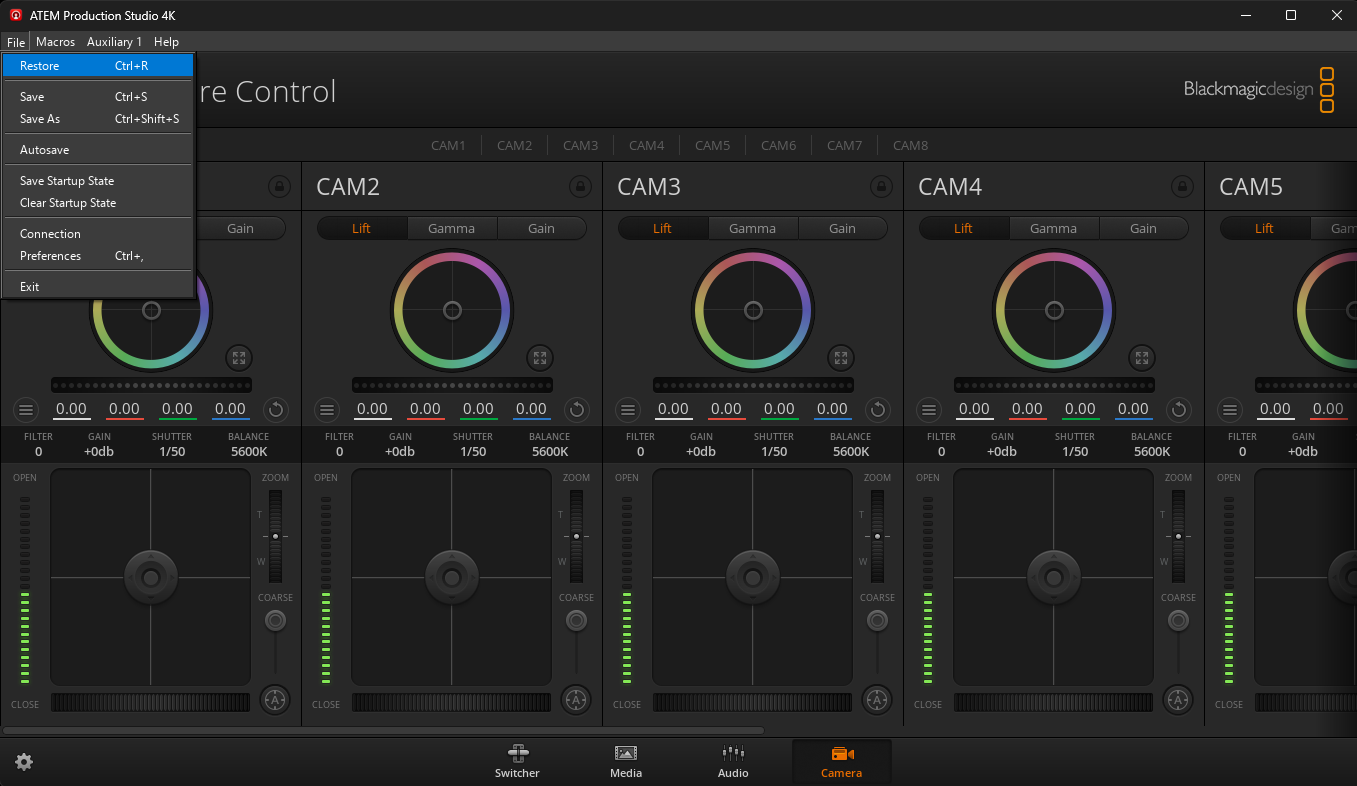
- From the main screen open “File” and choose “Restore”
3) Restore camera grades and switcher settings
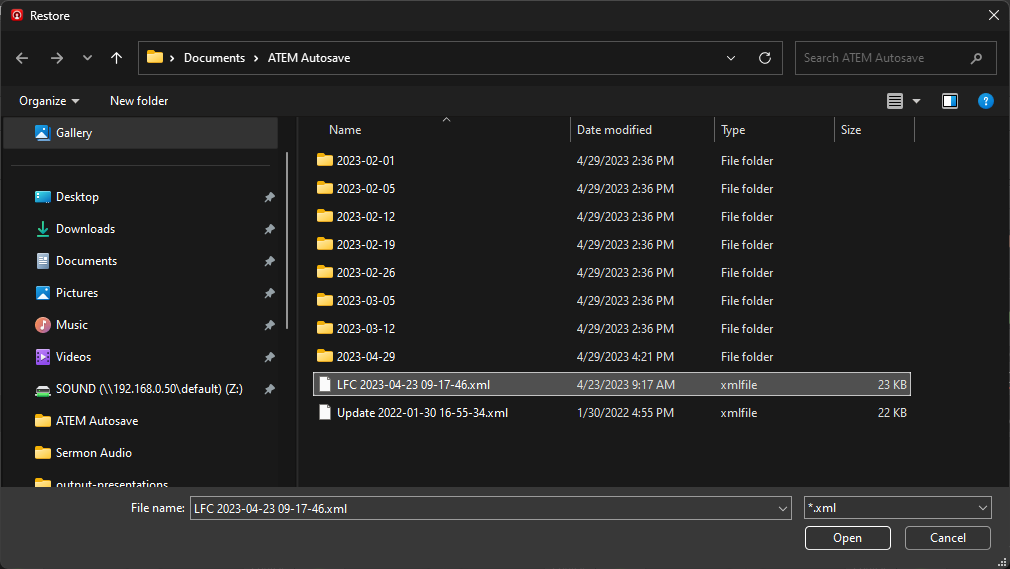
- The backed up settings are store at: C:\Users\Sound\Documents\ATEM Autosave\LFC 2023-04-23 09-17-46.xml
- Select LFC 2023-04-23 09-17-46.xml and choose “Open”
4) Confirm settings restore
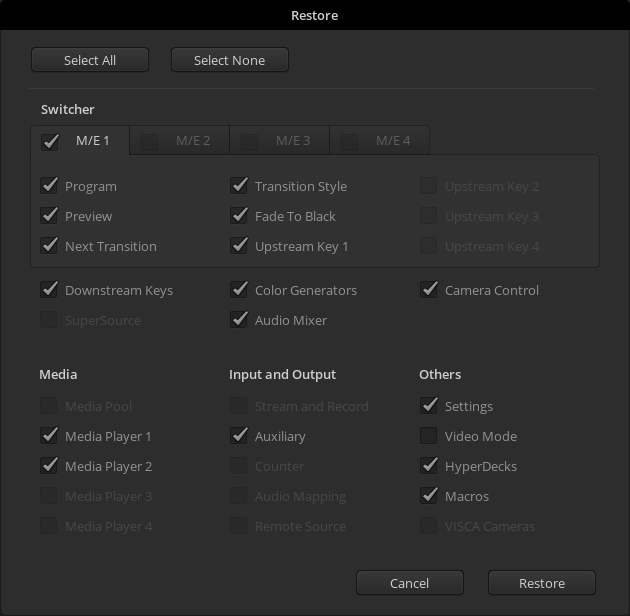
- On the “Restore” panel, leave all checks as default and click “Restore”
5) Close ATEM Software Control
- At this point you will see the camera image update on the preview monitor
- You are done with ATEM Software Control and can close the program
Next Steps
Proceed to Build ProPresenter AM/PM Playlists.
Previous: Live Stream Workflow – Task Guides · Next: Build ProPresenter AM/PM Playlists